Preparing Mail : Previewing a Document

Previewing a Document
The Mail Markup Office interface (Fig. 3) contains a facility for previewing the pages in a document.
Each page is viewed individually and the magnification can be increased and decreased.
Selecting a Mail Piece
If multiple mail pieces have been detected in a document, the Mail Piece list (Fig. 17) is populated.
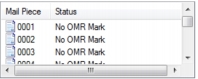
Fig. 17 Mail Piece list
The Mail Piece list contains numbers that correspond to mail pieces in the current document.
To select a mail piece and view its first page, click the corresponding number.
MORE:
For further details about detecting documents, refer to Preparing Mail > Detecting Mail Pieces.
Navigating Pages
The Mail Markup Office interface (Fig. 3) contains buttons (Fig. 18) for navigating pages in a multi-page document.

Fig. 18 Navigation buttons (first page, previous page, next page, last page)
Click a button to move to the first page, previous page, next page or last page of the document.
Changing the Magnification of a Page
A slider control (Fig. 19) is provided within the Mail Markup Office interface (Fig. 3) to increase or decrease the magnification of the page being viewed.

Fig. 19 Slider control
To move the slider control button and subsequently increase or decrease the magnification of a page, perform the following actions:
1.
2.
3.
Moving the slider control button to the far left displays the entire page.
NOTE:
When the magnification of a page is increased to a point where the entire page is no longer visible, scroll bars appear so the content that is hidden can be viewed.