Preparing Mail : Detecting Mail Pieces

Detecting Mail Pieces
By default, Mail Markup Office treats a document as if it contains a single mail piece. However, if a document contains multiple mail pieces, Mail Markup Office must be configured to detect each one so OMR marks are correctly applied.
To enable mail piece detection, click the Mail Piece Detection drop-down list then select the Multiple Mail Pieces option. Following this, two detection options become available:
NOTE:
If the Mail Piece Detection drop-down list and detection options are inactive and cannot be selected, mail piece detection has already been performed and will need to be reset.
Detecting by Keyword
If the first page of each mail piece in a document contains a consistent keyword that is located in a consistent position, this can be used for detection.
EXAMPLE:
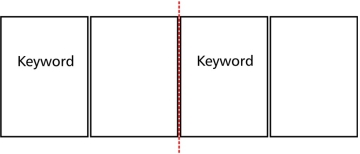
The following diagram shows how mail pieces are detected when a specified keyword is located.
Fig. 20 Example of detecting by keyword
To enable Mail Markup Office to locate a keyword, the keyword must be specified and the area on a page where it appears must be defined. To do this, perform the following actions in the Mail Markup Office interface (Fig. 3):
1.
2.
3.
4.
If necessary navigate to a page in the preview where the keyword appears.
5.
6.
7.
8.
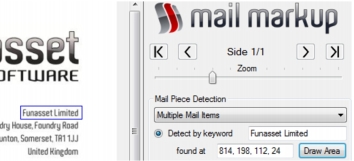
Move the mouse until a blue box encompasses the keyword (Fig. 20). It is essential for the box to be slightly larger than the keyword.
9.
Fig. 21 Example of keyword encompassed by a box
While a box is being drawn, its coordinates, width and height appear in the Found at box in the following format:
x, y, width, height
Click the Detect button. Following a short delay, a list of detected mail pieces appears in the Mail Piece list (Fig. 17).
NOTE:
Keywords are case sensitive.
MORE:
For details about previewing detected mail pieces, refer to Preparing Mail > Previewing a Document > Selecting a Mail Piece.
Detecting by Number of Sides
If mail pieces in a document have a consistent number of sides, an option to detect by number of sides is available.
EXAMPLE:
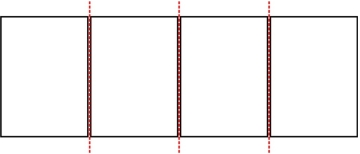
If mail pieces always contain one side, an option for detecting every one side would be configured.
Fig. 22 Example of detecting by number of sides (every 1)
To detect mail pieces by number of sides, perform the following actions:
1.
2.
3.
4.
Following a short delay, a list of detected mail pieces appears in the Mail Piece list (Fig. 17).
MORE:
For details about previewing detected mail pieces, refer to Preparing Mail > Previewing a Document > Selecting a Mail Piece.
Resetting
To reset mail piece detection and re-enable detection settings, click the Reset button in the Mail Markup Office interface (Fig. 3).