Managing OMR Configurations : Importing and Exporting

Importing and Exporting
Functionality for importing and exporting OMR configurations is contained in the OMR Configuration Import and Export dialog (Fig. 25) that is opened by clicking the Import and Export button in the Manage OMR Configurations dialog (Fig. 24).
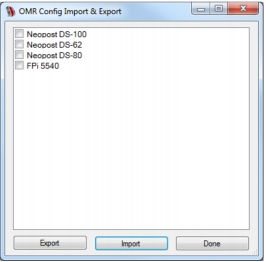
Fig. 25 OMR Configuration Import and Export dialog
Click the Done button to close the OMR Configuration Import and Export dialog.
OMR configurations are XML files that have an omr extension. The name of the OMR configuration dictates the name of the file and vice versa.
EXAMPLE:
If an OMR configuration was called Neopost DS10, the name of the associated OMR configuration file would be Neopost DS10.omr.
Importing
To import an OMR configuration, perform the following actions:
1.
2.
In the Browse dialog (Fig. 10) locate then select the required OMR configuration file.
3.
The name of the OMR configuration now appears in the OMR Configuration Import and Export dialog.
Downloading OMR Configurations
The following Funasset web page contains OMR configurations that can be downloaded then imported into Mail Markup Office:
funasset.com/support/downloads_omr_configurations.asp
Exporting
To export an OMR configuration, perform the following actions:
1.
2.
3.
In the Browse dialog (Fig. 10) locate then select the folder where the OMR configuration file will be saved.
4.
If an OMR configuration file with the same name already exists, a Confirm Action dialog (Fig. 12) appears.
When the OMR configuration has been exported successfully, a Notification dialog (Fig. 13) appears.