OMR mark position settings appear in the Paper Settings and OMR Position dialog (Fig. 27) that is opened by clicking the Page Size and OMR Position button in the Manage OMR Configurations dialog (Fig. 24).
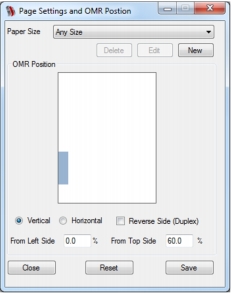
If the Any Size option in the Paper Size list box is selected, the From Left Side and From Top Side dimensions are a percentage. For all other options the dimensions are in millimetres (mm).
The From Left Side and From Top Side position settings allow you to specify the position of OMR marks by a percentage or by millimetres (mm). However, if preferred you can manually define the position by performing the following actions in the Paper Settings and OMR Position dialog (Fig. 27):
Paper sizes appear in the Paper Size list box in the Paper Settings and OMR Position dialog (Fig. 27) and can be added, edited and deleted as required.
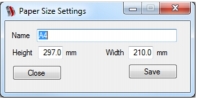
Paper size is specified in a Paper Size Settings dialog (Fig. 28) that is opened by clicking the New or Edit button in the Paper Settings and OMR Position dialog.
|
1.
|
Click inside the Name edit box then specify a name for the paper size.
|
A Save Changes dialog (Fig. 11) now appears asking you to confirm the save.
After a paper size has been added, the name specified for the paper size appears as an option in the Paper Size list box.
|
1.
|
Click the Paper Size list box in the Paper Settings and OMR Position dialog (Fig. 27) then select an option.
|
|
3.
|
In the Paper Size Settings dialog (Fig. 28) click inside the Name, Height and Width edit boxes then make the required change(s) to each one.
|
A Save Changes dialog (Fig. 11) is now opened asking you to confirm the save.
To delete an existing paper size, perform the following actions in the Paper Settings and OMR Position dialog (Fig. 27):
|
1.
|
Click the Paper Size list box then select an option.
|
A Confirm Action dialog (Fig. 12) is now opened asking you to confirm the delete.