Managing OMR Configurations : OMR Mark Settings

OMR Mark Settings
OMR mark settings appear on the Select Marks sub-tab (Fig. 37) on the OMR Marks tab (Fig. 30). Each can be added to an OMR configuration, ordered and removed.
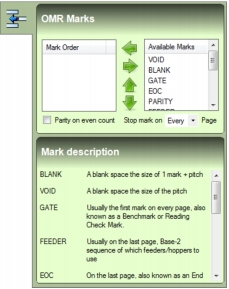
Fig. 37 Select Marks sub-tab
To open the Select Marks sub-tab, perform the following actions:
1.
Select, add, copy or import an OMR configuration.
2.
Fig. 38 Select Marks button
The following OMR marks are provided:
 
NOTE:
A description of each OMR mark is provided in the Select Marks sub-tab.
The following OMR mark settings are also provided:
 
Adding an OMR Mark
To add an OMR mark to an OMR configuration, perform the following actions:
1.
Open the Select Marks sub-tab (Fig. 37).
2.
3.
The name of the OMR mark appears in the Mark Order list.
Ordering OMR Marks
To move an OMR mark up or down in the Mark Order list, perform the following actions:

1.
Open the Select Marks sub-tab (Fig. 37).
2.
3.
Removing an OMR Mark
To remove an OMR mark from the Mark Order list, perform the following actions:
1.
Open the Select Marks sub-tab (Fig. 37).
2.
3.