|
•
|
Batching documents then sorting them in a specified order.
|
|
•
|
Outputting documents to a printer driver associated with a Watched Folder.
|
|
•
|
4GB RAM (for Home and Office products), 8GB RAM (for Business and Enterprise products) for optimal processing.
|
|
•
|
2GB HDD (for Home and Office products), 4GB HDD (for Business and Enterprise products) per Task for optimal processing.
|
The Service is installed independently from the Client on the same or different PC/server.
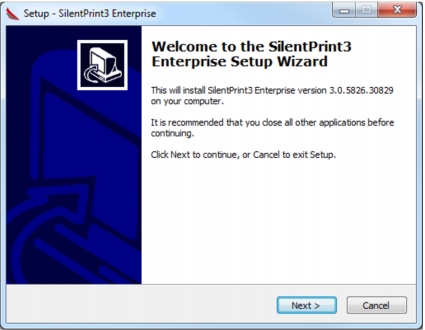
Double-click the Service installation program to begin the installation process. Following this, the SilentPrint3 Service Setup Wizard (Fig. 9) opens which guides you through the installation process.
Following installation, the Service is automatically started unless a previous installation was set to be started manually.
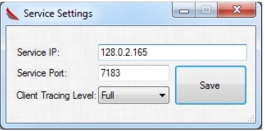
This information will have been determined automatically or specified manually during the installation of the Client. However, if the IP and port settings of the Service change or are incorrect, the information can be specified manually by performing the following actions:
|
1.
|
Click the Service Settings option on the Tray Menu (Fig. 4) to open the Service Settings dialog (Fig. 10).
|
All products are supplied as fully functional evaluations that place a watermark on all output until the associated Service licence is activated.
The licence status is viewed, and activating and deactivating a licence is performed, on the Licence page (Fig. 11) of the interface (Fig. 6).
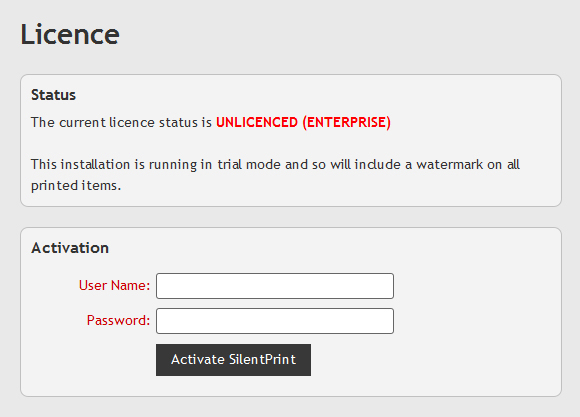
If the user name and password are correct and a licence that matches the associated product is available in your user account, the licence is activated or deactivated.
To uninstall the Service, firstly deactivate its licence if activated. Following this, search for Uninstall SilentPrint3 in Windows Search or Cortana, or perform one of the following actions: